

BPM software – General Workflow – Starts with the CUSTOMER
VerityBeyond BPM - GRC New Customer
In the customer management view, we can onboard, update and define a customer.
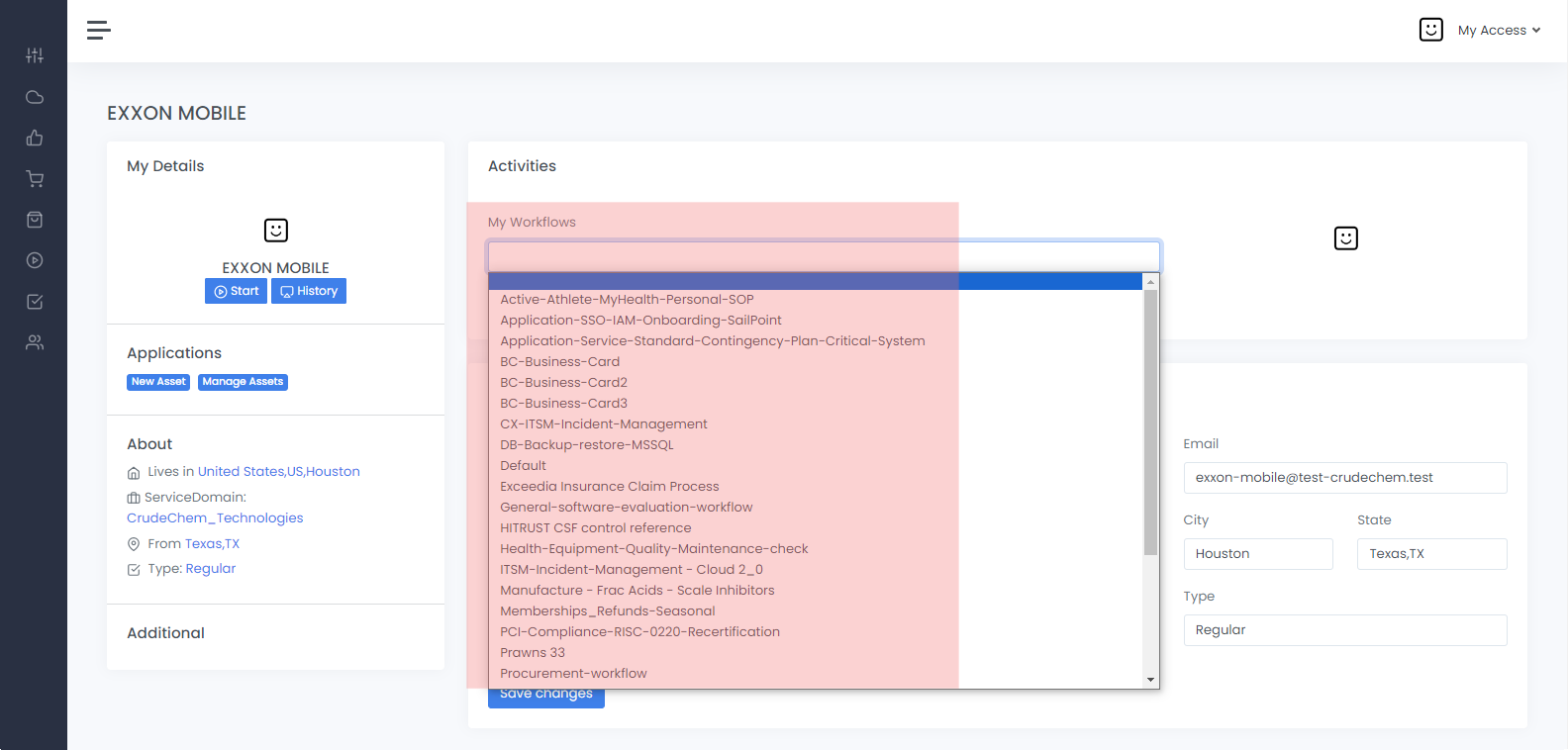
To initiate a service request SOP workflow for a customer, select the customer Activities
My workflows select an SOP workflow
Start order, this will initiate the SOP workflow to manage the certification / order request for the customer.
In the same way, a certification workflow can be run for a customers asset. Select the customer
Manage asset select the asset certify asset
Select workflow Start certification.
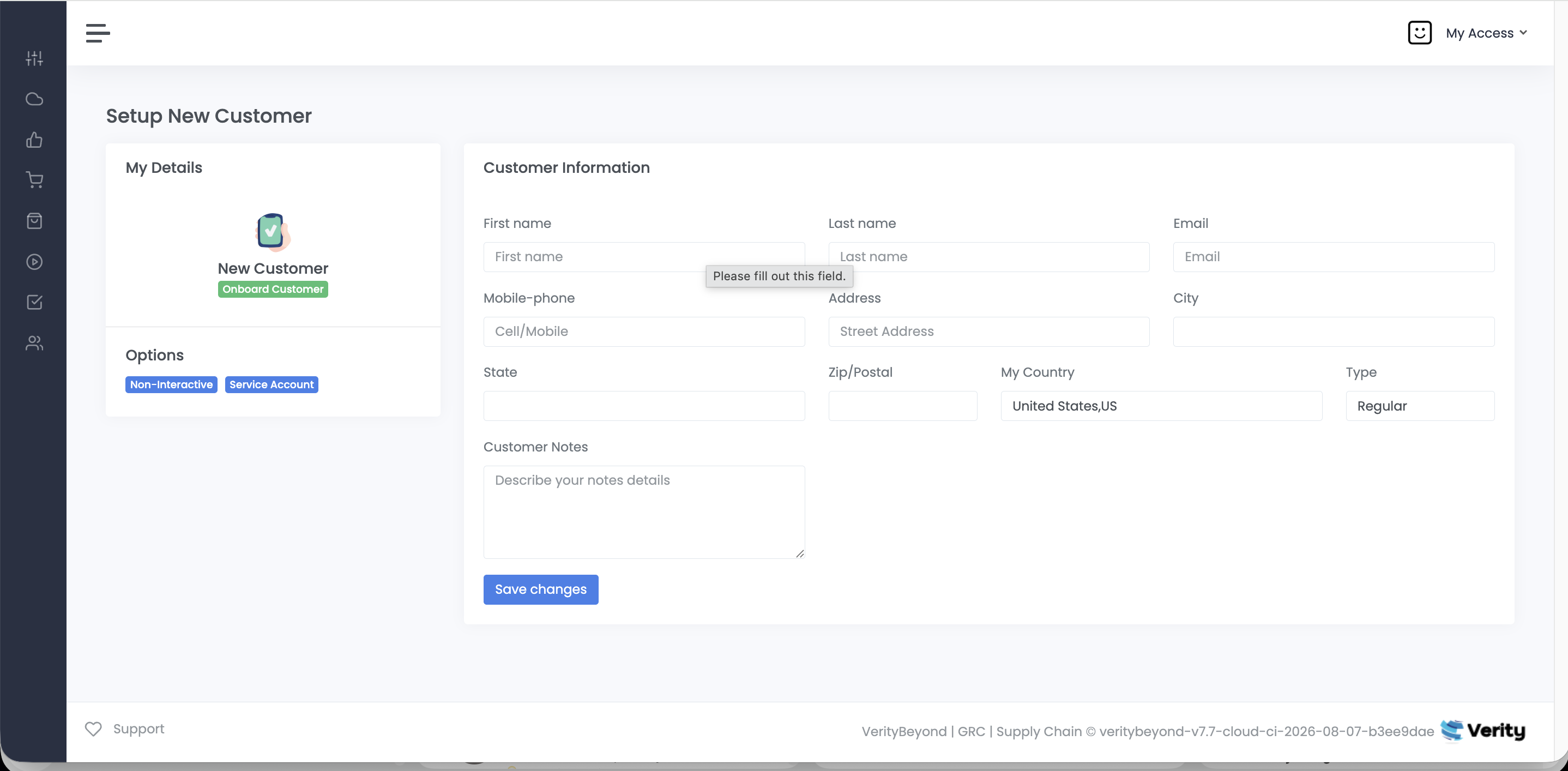
VerityBeyond BPM-GRC | New Customer
In theSetup New Customer window, you will enter the customer's contact information and specify the customer type, whether they are a regular customer, employee, or contractor. Note if you want the customer to be part of the communication link receiving updates as the workflow progresses, this option is good. However if you want the customer to not be informed about the case workflow as it progresses, you want to create a customer with a non-interactive account or service account. See 'Types of customer' on the link on the right
VerityBeyond BPM: Bulk upload Customers
For enterprise customers there might be a need to ingest your customer records into VerityBeyond via automation. Customers can be entered manually, or through CSV flatfile import. You can enter the customer information, and relevant account information and upload the data into the system. Its best practice to prepare the customer information in a clean file, and ingest the data into your Quality Assurance tenant instance, before importing this into your Production Environment.
 New Customer and Category
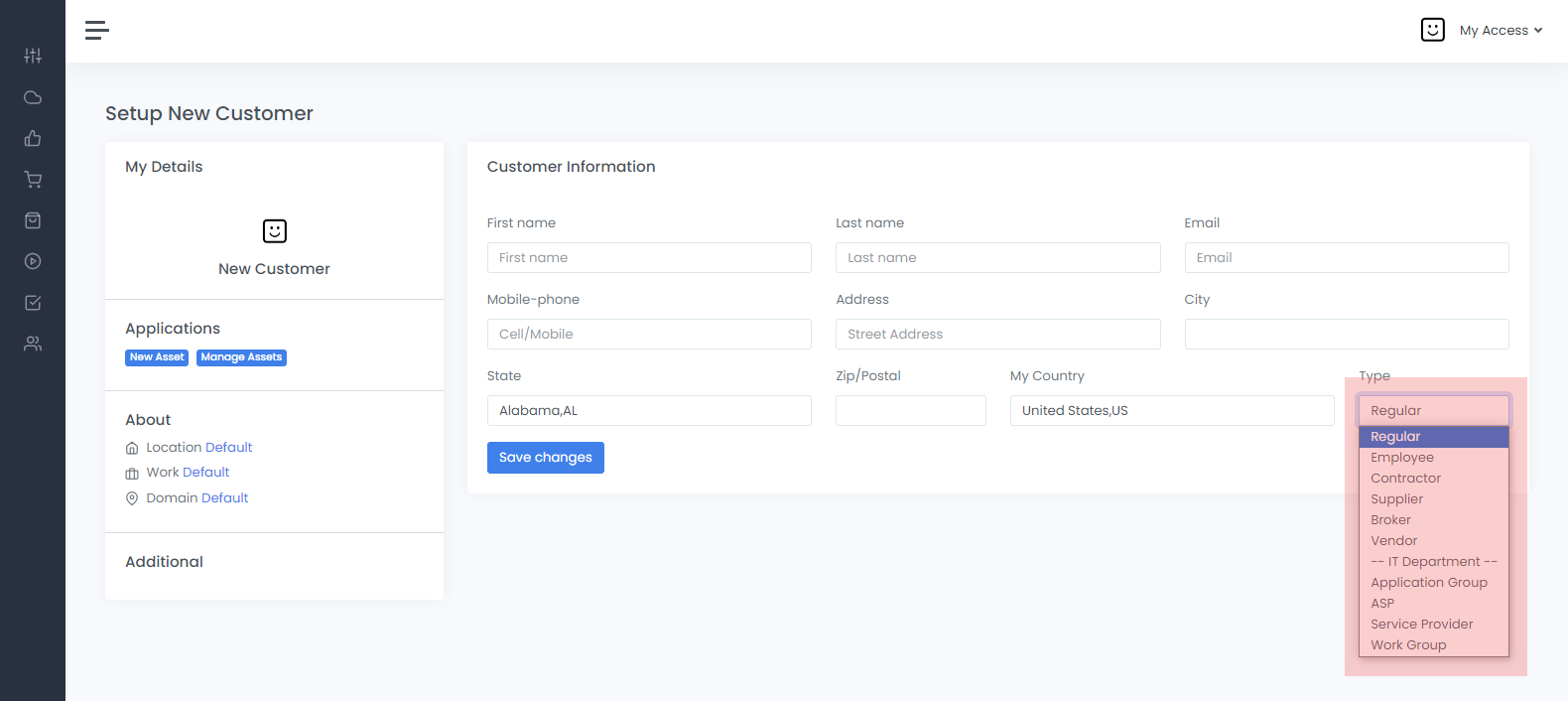
New Customer type and category
It is very important to select what type of customer and category he belongs to.
The workflow initiates with the customer, who may be internal (within the organization) or external. You can select the type of customer by going into the type field
and select from the pulldown menu All activities are ideally centered around the identity of the customer or organization, whether they are making a service request,
purchasing an e-commerce product, managing a supply chain asset, or initiating a general service inquiry.
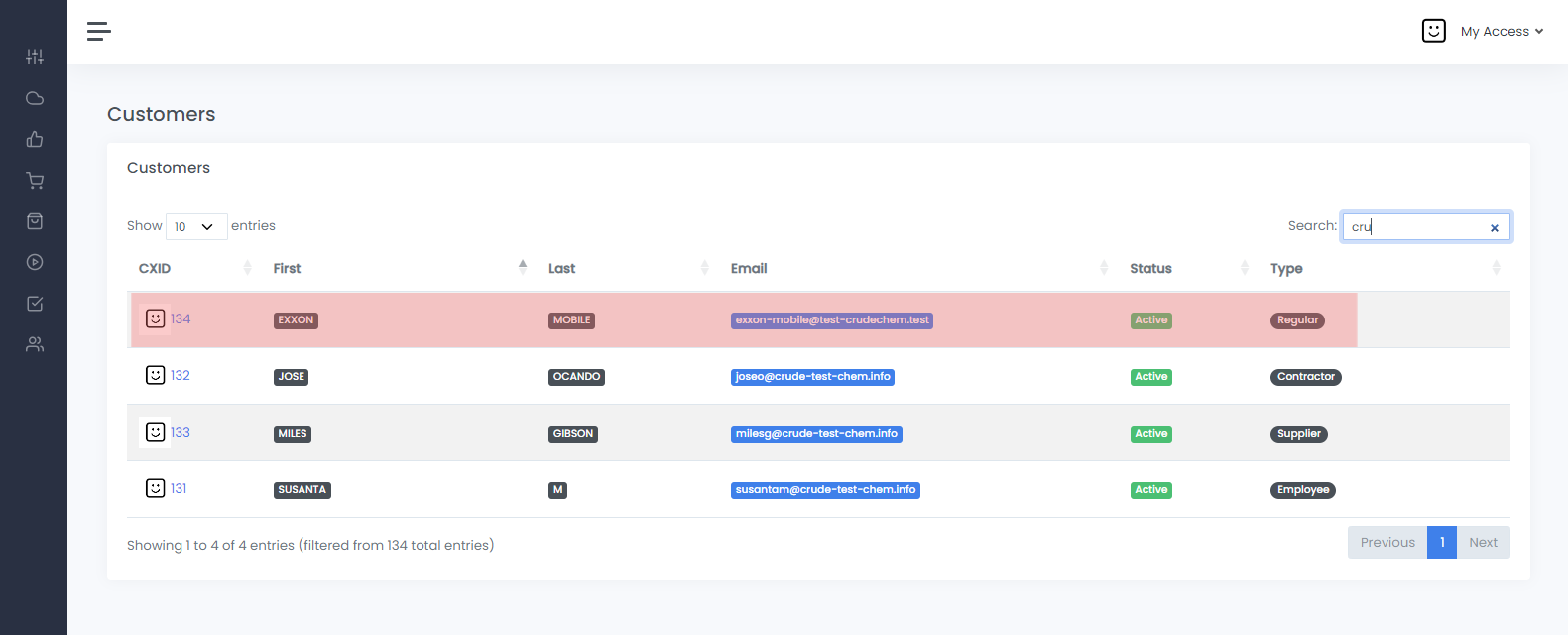
Our Customer
TheCustomers page offers a comprehensive list displaying all customer records stored in the system. Click on the customer's ID
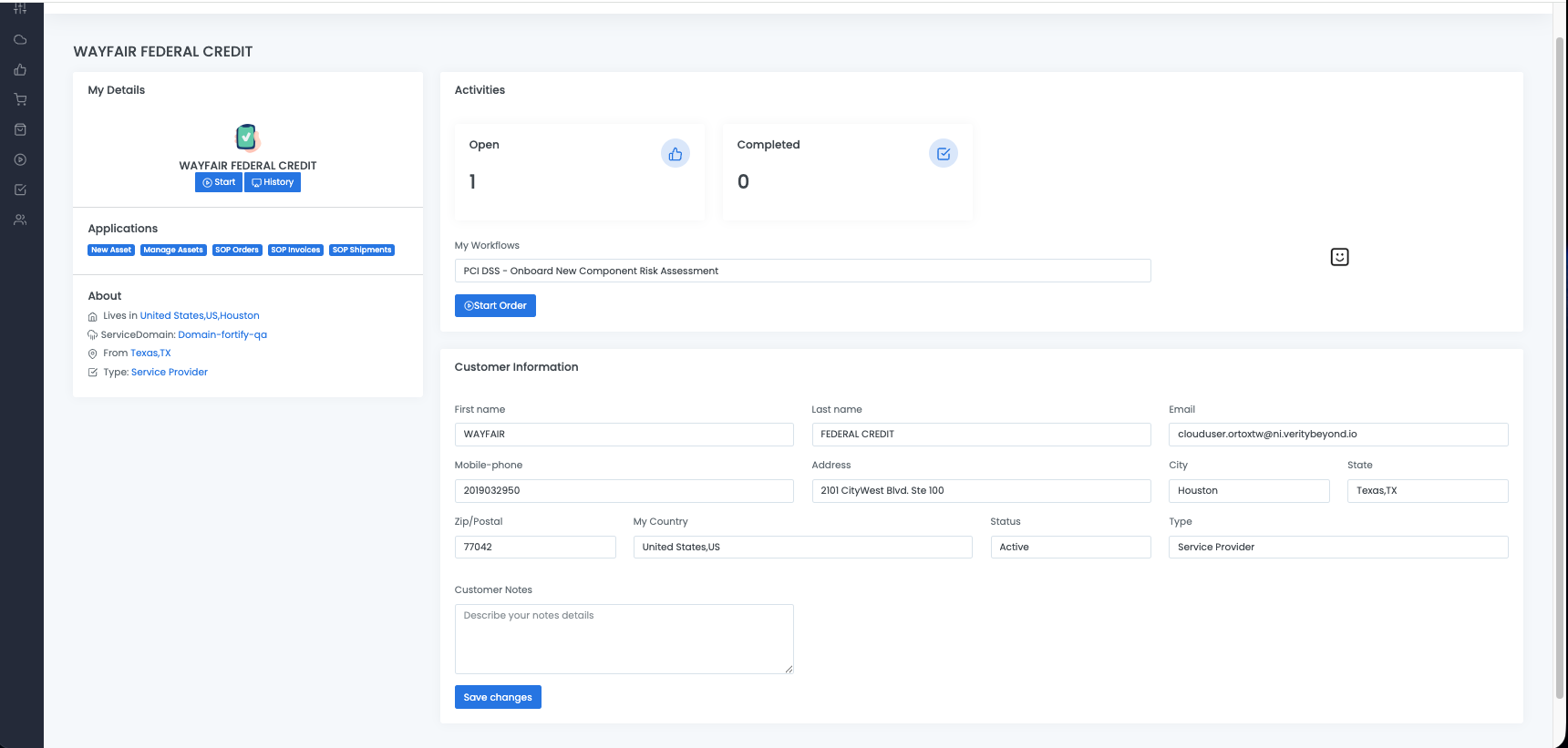
My details - Customer's Page
This is where you now select theWorkflow from the pulldown menu or the list of SOP workflows that have been created in your site.
make sure you click on Start Order Under Applications you can Add new assets and manage them also.
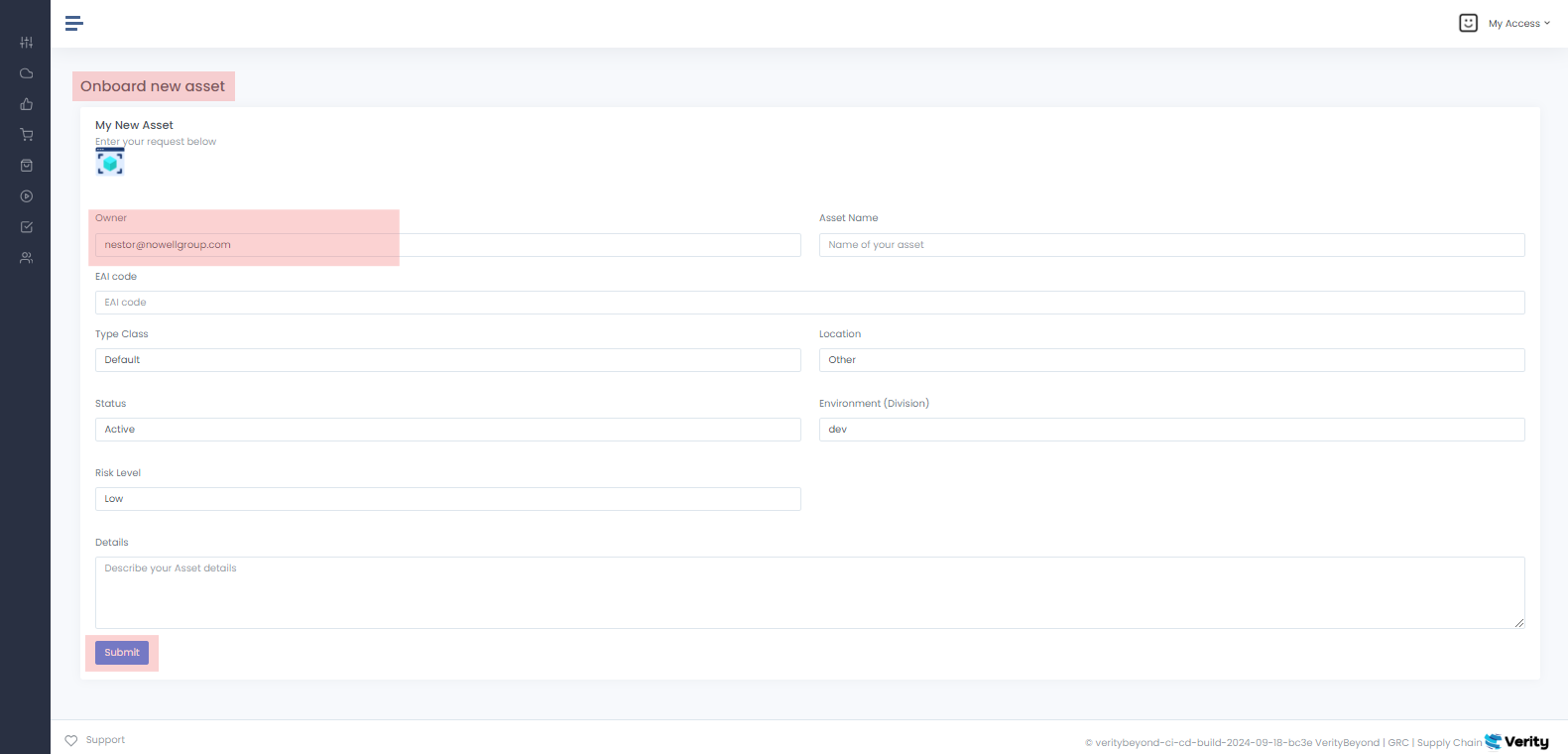
New Customer Asset
This is where you now select theWorkflow from the pulldown menu or the list of SOP workflows that have been created in your site.
make sure you click on Start Order Under Applications you can Add new assets and manage them also.
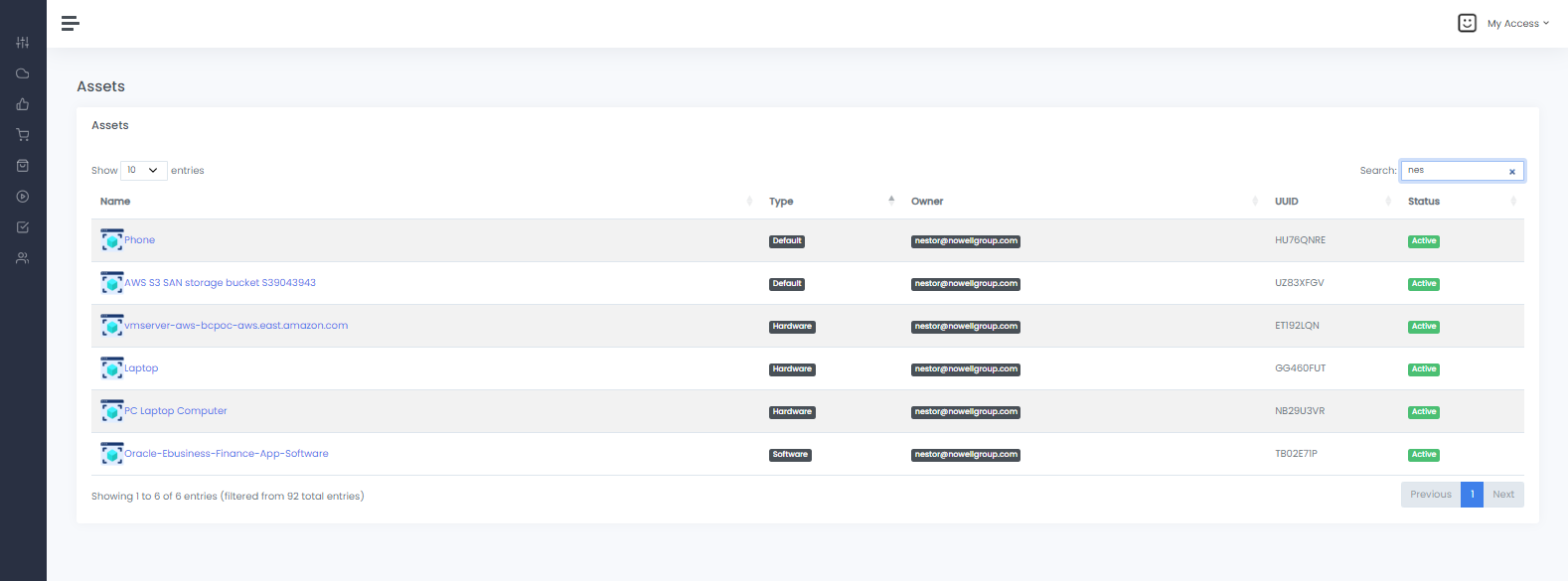
Manage Assets
This is where you now select theWorkflow from the pulldown menu or the list of SOP workflows that have been created in your site.
make sure you click on Start Order Under Applications you can Add new assets and manage them also.
Our Customers
Our Customer
-
The
Customerspage offers a comprehensive list, displaying all customer records stored in the system. Each entry in the table corresponds to a distinct customer, whether affiliated with your organization internally or externally.
Types of Customers
VerityBeyond supports the following types of customers. Each of these customer categories has a different use case.-
Regular:A regular customer is one that will be notified about status updates for their orders. If you want your customer to receive updates about the processing of their orders and cases, or if you want them to be able to login to the CX platform system to raise requests and issues, then the default is sufficient. However if you do not want the customer to access the platform or be notified about case updates, then this should not be selected, instead create a non-interactive or service account customer as shown Non-Interactive:This is for customers who will not be involved in the processing of their orders, cases or issues. In this context, the back-office raises the requests or workflow cases on behalf of the users; To open: Open new customer --> options -->Non-interactiveService Account:This is for customers who will not be involved in the processing of their orders, cases or issues. In this context, the back-office raises the requests or workflow cases on behalf of the users. This could be used to represent an entity a group, department or some collection To open: Open new customer --> options --> Service Account